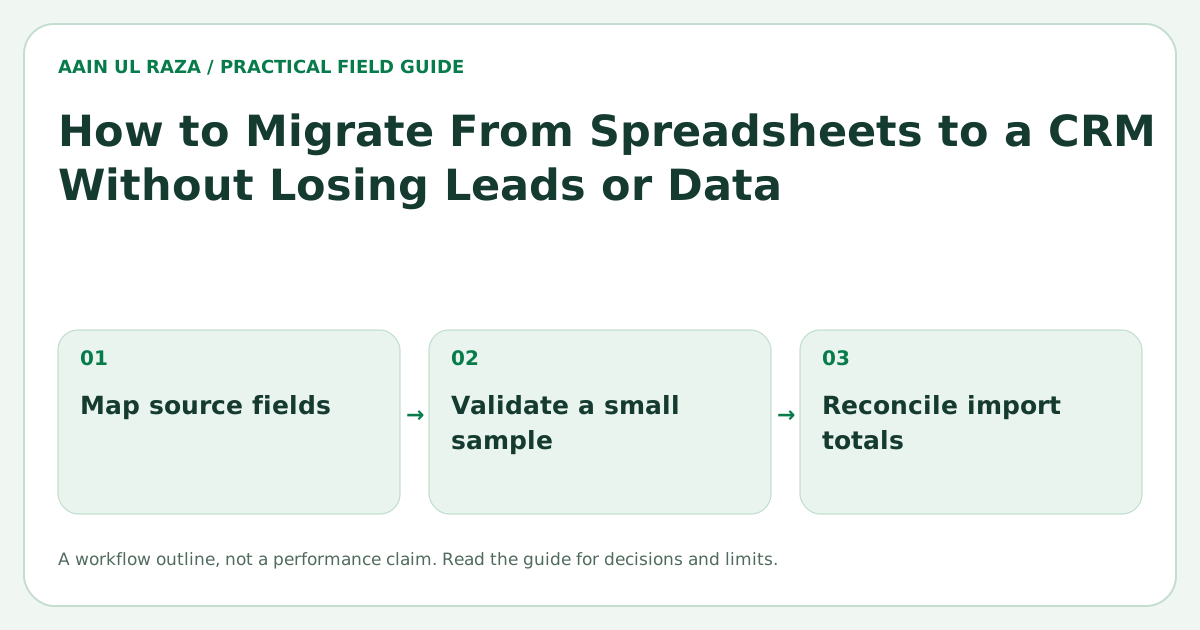
How to Migrate From Spreadsheets to a CRM Without Losing Leads or Data
A complete CRM migration guide covering spreadsheet cleanup, field mapping, duplicate handling, import testing and final validation.
Updated · Sources, examples and corrections
Moving from spreadsheets to a CRM is one of the most valuable upgrades a growing business can make, but it often feels risky. Founders worry that leads will disappear, notes will be lost or the imported data will become a mess.
Those risks are real, but they are usually caused by rushed migration, not by the CRM itself. A good migration process protects data quality and gives the team a much stronger system to work from.
Why spreadsheet systems break down
Spreadsheets work at the start because they are simple. Over time, they create problems such as:
- Duplicate contacts
- No clear ownership
- Weak activity tracking
- Poor follow up discipline
- Hard to filter or report data
- No automation
A CRM solves many of these issues, but only if the migration is planned properly.
Step 1: Clean the spreadsheet before importing
Never import raw spreadsheet data without cleanup.
Check for:
- Duplicate rows
- Inconsistent capitalization
- Mixed phone formats
- Empty required fields
- Old or irrelevant records
- Multiple values in one cell
For example, if your “Status” column contains values like Lead, lead, new lead, Prospect and Interested, you should standardize them before migration.
Step 2: Decide what should move into the CRM
Not every spreadsheet column deserves a CRM field.
Separate the data into:
- Must keep
- Useful but optional
- Archive only
- Delete
Typical CRM migration fields include:
- First name
- Last name
- Phone
- Company
- Source
- Lead status
- Owner
- Notes
- Last contact date
Step 3: Map spreadsheet fields to CRM fields
Field mapping is the process of matching old columns to the new CRM structure.
Example:
| Spreadsheet column | CRM field |
|---|---|
| Name | Contact Name |
| Company | Account |
| Phone | Phone |
| Status | Lead Status |
| Sales Person | Owner |
This sounds simple, but it is one of the most important steps. Bad mapping creates bad CRM data from day one.
Step 4: Handle duplicates carefully
Duplicates are one of the biggest migration problems. A contact may appear multiple times because:
- Several team members added the same lead
- The lead used different email addresses
- Company and contact records were mixed
Before importing:
- Deduplicate by email where possible
- Review same name and phone combinations
- Merge notes if needed
- Choose one primary record
It is better to spend extra time on duplicates now than deal with a polluted CRM later.
Step 5: Prepare ownership and pipeline rules
A CRM works best when every record has a clear place.
Decide:
- Which user owns imported leads
- Which pipeline or board the records enter
- What lifecycle stages mean
- Which records need immediate follow up
Without this, your CRM becomes a cleaner spreadsheet instead of a better operating system.
Step 6: Run a small import test first
Do not import everything at once. Start with a small batch.
A test import should verify:
- Fields map correctly
- Notes display correctly
- Phone and email formats work
- Owners assign correctly
- Status values appear in the right stage
- No weird encoding or broken characters appear
This test phase catches issues before they affect the full dataset.
Step 7: Validate the final import
After the full import, run checks such as:
- Record count comparison
- Spot check key customers
- Check duplicates again
- Verify notes and custom fields
- Confirm owner assignment
- Test filters and reports
Validation is what gives confidence that nothing important was lost.
Common migration mistakes
Importing too much junk
Old irrelevant records make the new CRM harder to trust.
No field standards
If statuses, industries or sources are inconsistent, reporting becomes weak.
Skipping test imports
This is one of the easiest ways to create a bigger cleanup project.
No user training
Even a good migration can fail if the team keeps working the old way.
No post import workflow
A CRM without tasks, stages or follow up rules will not improve results much.
A practical migration checklist
- Back up the spreadsheet
- Clean and standardize the data
- Remove duplicates
- Define required CRM fields
- Map old columns to new fields
- Create owner and pipeline rules
- Run a small test import
- Validate the test results
- Import the full dataset
- Run final validation and team training
Hypothetical migration scenario
A small agency has 1,000 rows in a spreadsheet.
After cleanup:
- 90 duplicates removed
- 70 outdated records archived
- 840 active records remain
A test batch of 50 records is imported first. Two issues appear:
- Phone formats are inconsistent
- Source labels need standardization
In this hypothetical scenario, the next batch is permitted only after those issues are fixed and the 840 intended active records are reconciled with owner assignment and pipeline stages. This is an acceptance goal, not a measured migration result.
That is a much better result than importing all 1,000 rows blindly.
Build a migration data dictionary
Before import, create a data dictionary that defines every important field. Record the field name, purpose, data type, allowed values and whether it is required.
For example, "Lead Status" should not mean one thing to sales and another thing to marketing. Define the allowed values and what each value means. This improves the migration and prevents the CRM from becoming inconsistent again after launch.
Preserve important history
Some spreadsheets contain useful context that does not fit neatly into standard CRM fields. Notes about previous conversations, last contact date, original lead source or important account details may still matter.
Decide how this history will be represented. You may import it into notes, activity history or structured custom fields. Do not force all historical data into one giant notes field if the information is important for reporting.
Plan the cutover day
Migration is not only about moving data. You also need a moment when the team stops editing the old spreadsheet and starts using the CRM.
Choose a cutover date, take a final backup, import any last changes and make the new system the official source of truth. If staff keep updating both systems, records will immediately diverge.
Reconcile totals after migration
Use simple reconciliation checks. Compare the number of active leads, customers, opportunities and assigned records before and after migration. Check totals by owner and status, not only the overall record count.
A total of 840 records may match, but if 100 records lost their owner assignment the migration is still incomplete.
Create a rollback plan
Keep the original spreadsheet and an export of the cleaned migration file. Document the import batch and timestamp. If a major problem appears, you should be able to remove the imported batch or restore from the source without guessing.
A rollback plan reduces pressure and makes testing more confident.
Prevent the new CRM from becoming another messy spreadsheet
After launch, add validation rules, required fields and controlled dropdown values where appropriate. Limit who can create new fields. Schedule regular duplicate review and data hygiene checks.
Migration is only successful if data quality stays high after the first week.
Train the team around the new process, not just the software
CRM training should explain what each stage means, when a record must be updated, how ownership works and which fields are required. A ten minute tour of buttons is not enough. Give the team a few realistic scenarios and let them practice moving a lead from intake to follow up and outcome. Clear operating rules are what turn a migration into a real process improvement.
Migration needs an evidence trail
The FTC’s practical security guidance supports limiting unnecessary customer data copies. Before import, record the data owner, sample-record accuracy, deleted duplicates and secure storage of the original export; never distribute raw contact CSVs in a public article.
Reconcile every source row to a disposition
Use a ledger, not just a total count. Every source row should map to an imported record, an intentionally merged record, a rejected row or a documented exclusion. For a fictional 100-row test, 90 imports plus five merges and five rejections explain all 100 rows; "95 contacts created" does not.
Preserve source IDs in a dedicated migration field. Check relationship counts for deals and notes as well as contact counts. A matching contact total can hide orphaned deals or swapped owners.
Keep a read-only source export and the exact mapping version until the reconciliation is accepted. If verification fails, stop the next batch and correct the mapping. Do not overwrite the source workbook with an export from the partially migrated CRM.
Further reference: FTC Start with Security guide.
Frequently Asked Questions
How long does CRM migration take?
A small migration may take a few days. Larger or messier datasets may take one to several weeks depending on cleanup effort.
Should I move every old record into the new CRM?
Usually no. It is often better to archive old, inactive or poor quality records instead of importing everything.
What is the biggest migration risk?
The biggest risk is poor data quality, especially duplicates and bad field mapping.
Why is a test import so important?
A test import helps you catch mapping, formatting and ownership issues before they affect the full dataset.
What should I do after the import is finished?
Train the team, test reporting, review ownership and make sure the new CRM workflow is actually being followed.
A migration acceptance exercise with a known answer
Before importing a real spreadsheet, open the browser-local CRM checker and load its synthetic example. The sample CSV has six input rows and deliberately contains a normalized-email collision, a missing owner, an invalid email and an invalid timestamp.
With the published rules, the expected reconciliation is 6 input = 1 ready + 3 review + 2 reject. This is a test fixture, not an estimate of your data's quality. Change one field at a time and rerun it. Giving L04 an owner should move that row from review to ready. Correcting L05's timestamp should remove that rejection. Keeping two rows with the same normalized email should continue to require a human decision.
Use the exercise to write a field map rather than assuming matching column names are sufficient. Record each source column, destination field, type, allowed blanks, enum mapping and authoritative system. Decide whether created_at means original capture time or import time. Do not replace an old capture time with today's date merely to satisfy a required field.
The checker does not import anything. Once the sample behavior is understood, take a small authorized staging subset into the actual CRM. Check whether owners exist, dropdown values map correctly, long notes are retained, access rules apply and external IDs survive the import. Reconcile the CRM's accepted and rejected counts against your input file. Then export the staged records and compare the important fields with the source.
Keep a rollback plan before the full import: identify the import batch, preserve the source file, verify how newly created records can be distinguished from updated records, and confirm how an accidental merge would be recovered. A clean CSV cannot guarantee a safe migration if those system behaviors are unknown.

Co-Founder of Strat IQ Digital and builder of CrawlerQue and Stratly Digital, based in West Palm Beach, FL. I work on AI products, SaaS, SEO intelligence, CRM automation and growth systems.